Getting Started with Jetson
An onboarding guide for new NVIDIA Jetson developers, covering the official developer kit user guides and remote development with VS Code or Cursor over SSH.
This guide is the recommended starting point once you have an NVIDIA Jetson developer kit in hand. It first directs you to the official Quick Start Guide for your developer kit to complete the initial hardware and software setup, then walks through establishing a remote development workflow from your workstation over SSH, including a full IDE experience with VS Code or Cursor.
If you are new to the Jetson platform, review Introduction to NVIDIA Jetson first for an overview of the hardware generations, developer kits, and the JetPack software stack.
Official Developer Kit Quick Start Guides
Firmware flashing, first boot, and JetPack installation are documented in the official Quick Start Guides on docs.nvidia.com. Select the guide that corresponds to your developer kit and complete the setup before continuing.
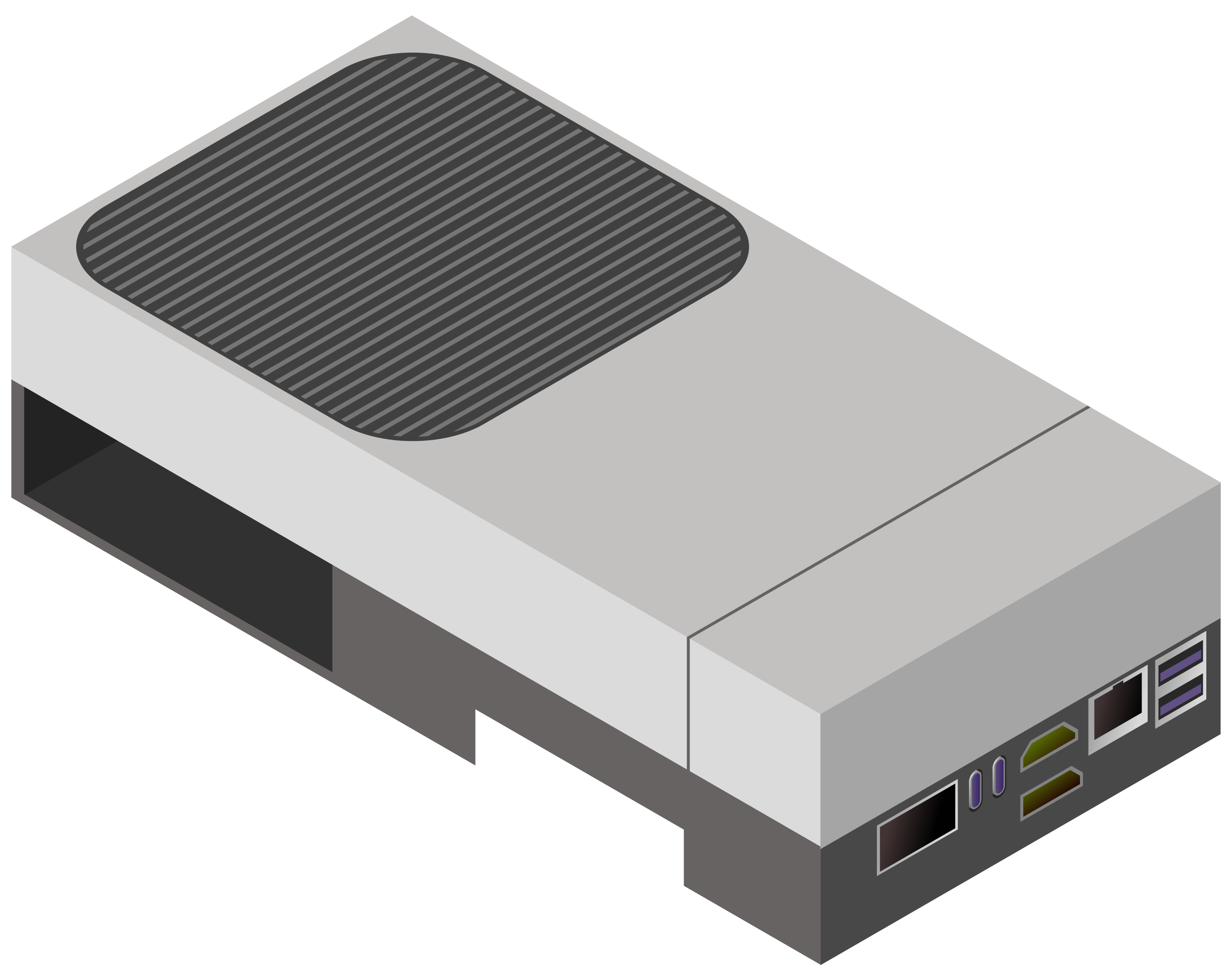
Thor Generation
Jetson AGX Thor Developer Kit — Quick Start Guide
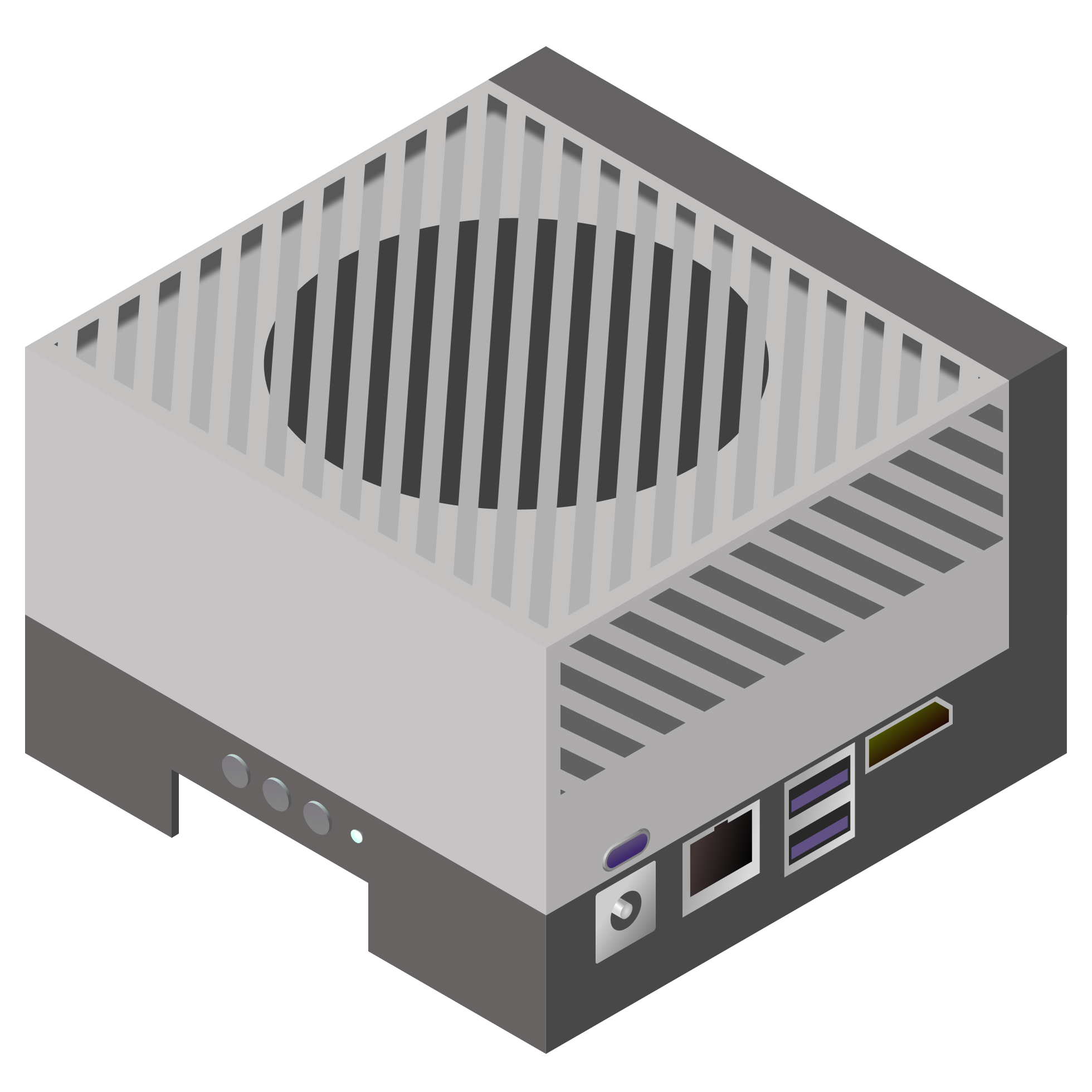
Orin Generation
Jetson AGX Orin Developer Kit — Quick Start Guide
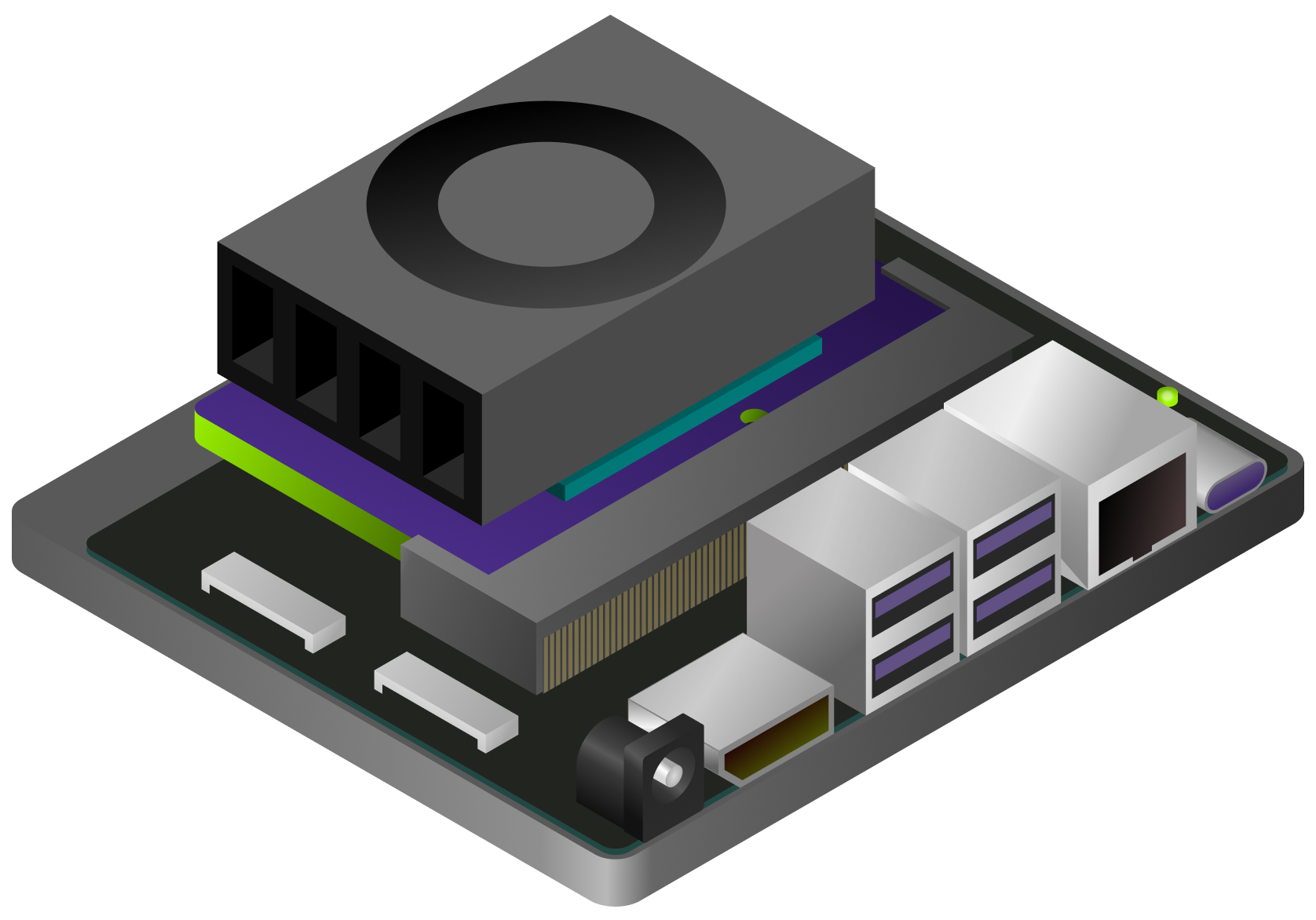
Orin Generation
Jetson Orin Nano Developer Kit — Quick Start Guide
After your Jetson has been flashed and has completed its first boot, continue to the next section to establish a remote development workflow from your workstation.
Remote Development
Development on Jetson is typically done remotely over SSH, so no monitor or keyboard is required on the device itself.
Connect over SSH. Open a terminal on your workstation (PowerShell or Command Prompt on Windows; Terminal on Mac/Linux) and connect, replacing
USERNAMEandJETSON_IPwith your values:ssh USERNAME@JETSON_IP📘 Tip
Orin developer kits expose a fixed address
192.168.55.1over USB-C (USB Device Mode), which is convenient for a first connection before the device is on your network. If that address is not reachable, connect the Jetson to Wi-Fi or Ethernet and SSH using its network IP instead.Connect to a network so the Jetson has internet access for downloading models, packages, and skills:
While SSH’d into the Jetson, connect to Wi-Fi:
sudo nmcli device wifi connect WIFI_SSID password WIFI_PASSWORDPlug an Ethernet cable into the Jetson. Most networks assign an IP address automatically via DHCP.
Find the Jetson’s network IP and reconnect using it (ignore
192.168.55.1, which is the USB connection):hostname -I
💡 Tip
Some Wi-Fi networks block device-to-device connections. If SSH fails over Wi-Fi, use Ethernet or a dedicated local router.
Use VS Code or Cursor for Remote Development
For a complete development experience, connect VS Code or Cursor directly to the Jetson over SSH. This provides file browsing, syntax highlighting, an integrated terminal, and editor extensions running on your workstation, while the code itself executes on the Jetson.
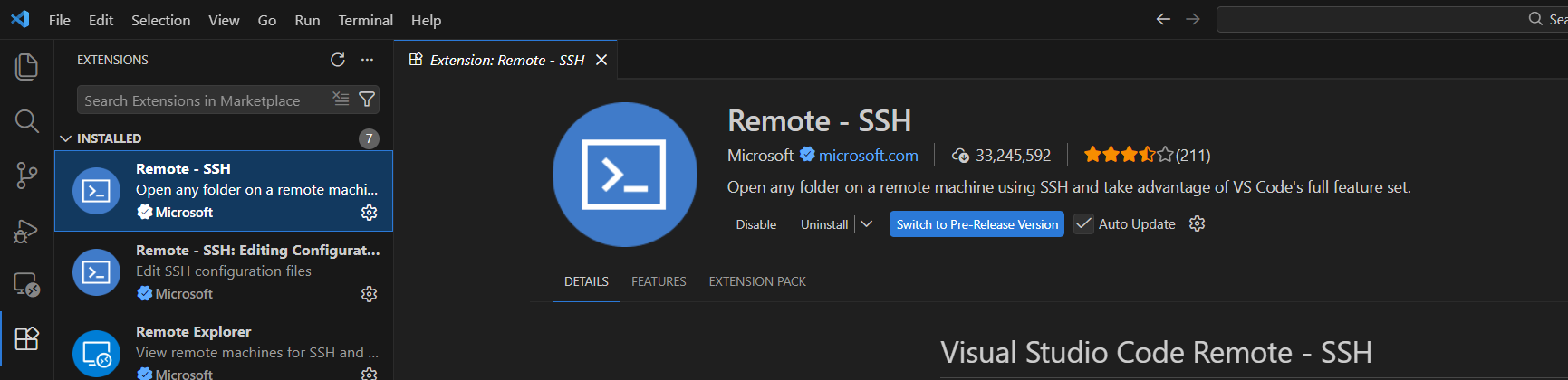
Install the Remote - SSH extension:
- VS Code: Open Extensions (
Ctrl+Shift+X), search for “Remote - SSH” by Microsoft, and install it. - Cursor: The Remote - SSH extension is built-in — no installation needed.
- VS Code: Open Extensions (
Open the Command Palette (
Ctrl+Shift+P/Cmd+Shift+Pon Mac) and select “Remote-SSH: Connect to Host…”Enter the SSH connection string — for example:
jetson@192.168.1.42USERNAME@JETSON_IPWhen prompted, select Linux as the platform for the remote host:
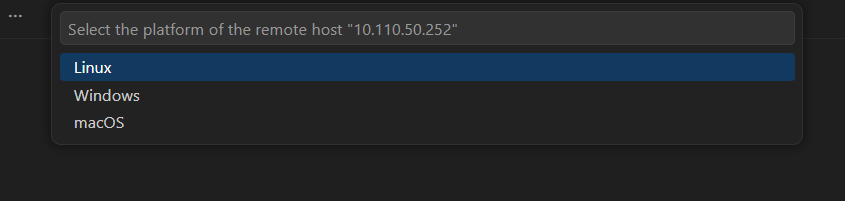
Enter the password when prompted:

The editor connects and installs a lightweight server on the Jetson automatically.
Once connected, you’ll see “SSH: <IP address>” in the bottom-left corner. Use Open Folder to browse and edit files on the Jetson, and open the integrated terminal (
Ctrl+`) to run commands.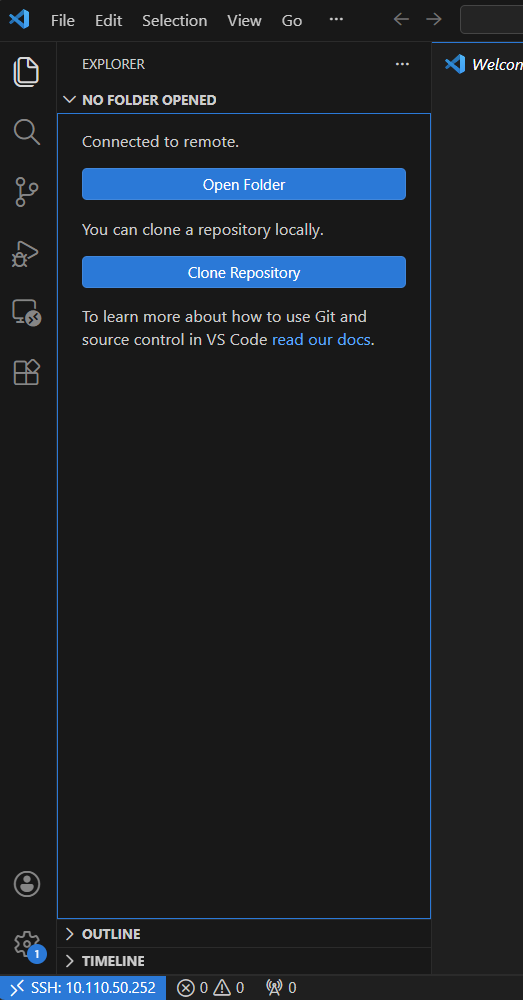
💡 Tip — Save your SSH config for one-click access
Add the Jetson to your SSH config file (~/.ssh/config):
Host jetson
    HostName 192.168.1.42
    User jetson
Replace the IP and username with your values. After this, select “jetson” from the host list in VS Code/Cursor — or type ssh jetson in a terminal.
AI-Assisted Workflows with Jetson Device Skills
Jetson Device Skills are agent skills that enable AI coding agents to understand and operate a live NVIDIA Jetson device. They provide the agent with the procedures needed to inspect Jetson-specific signals, including the device model, JetPack and L4T version, memory, GPU usage, thermal state, power mode, containers, installed packages, and LLM serving workflows.
Why It Matters
A Jetson device differs from a standard Arm Linux machine in several important ways: it uses unified CPU/GPU memory, ships JetPack-specific packages, exposes distinct characteristics across the Orin and Thor generations, supports configurable power modes, and reports specialized GPU memory signals. Without this context, AI agents tend to provide generic Linux or discrete-GPU advice that does not apply to Jetson.
With Jetson Device Skills installed, the agent follows a Jetson-specific playbook for diagnostics, memory tuning, headless configuration, model serving, benchmarking, and package selection.
Included Skills
jetson-diagnostic— read-only device health snapshot (identity, memory, GPU, thermals, power, storage, services, top processes)jetson-memory-audit— measure DRAM/NvMap usage and verify memory reclamationjetson-headless-mode— safe plan to disable the desktop and free background servicesjetson-inference-mem-tune— serving runtime and memory flags for vLLM, SGLang, llama.cpp, and TensorRT Edge-LLMjetson-llm-serve— Jetson-appropriate vLLM and SGLang serving recipesjetson-llm-benchmark— structured benchmark metrics for vLLM, llama.cpp, and Ollamajetson-package— Jetson-specific package, wheel, and container choicesjetson-speculative-decoding— EAGLE-3 or draft-model speculative decoding guidance for vLLM
Installation
Run the following steps directly on the Jetson, using either an SSH session or the integrated terminal in VS Code or Cursor. The skills are distributed through the jetson-device-skills repository.
-
Clone the repository on the Jetson:
git clone https://github.com/NVIDIA-AI-IOT/jetson-device-skills.git cd jetson-device-skills -
Install the skills:
bash ./install.sh -
Restart your AI agent session (Cursor, Claude Code, or Codex) so it can discover the newly installed Jetson skills.
Verifying the Installation
After restarting your agent, confirm that the skills are available by issuing the following prompt:
Use the Jetson diagnostic skill to inspect this device and summarize the model, JetPack/L4T version, memory, GPU usage, thermals, and power mode.If the skills are installed correctly, the agent collects live device information and returns a Jetson-specific summary rather than generic Linux advice.
Example Prompts
The following prompts demonstrate common Jetson workflows enabled by the skills:
- My Jetson is low on memory. Find what is using RAM and GPU memory, then tell me what I can safely do next.
- I do not need the desktop UI. Show me a safe headless-mode plan to free memory, but do not apply it yet.
- I want to run an LLM on this Jetson. Based on available memory, recommend the runtime and launch flags.
- Show me how to serve a Hugging Face LLM on this Jetson with an OpenAI-compatible endpoint.
- Benchmark this running model and report TTFT, token latency, throughput, and end-to-end latency.
- I need
PyTorch,vLLM, orONNX Runtimeon Jetson. Tell me which container or package source I should use.
Customizing the Jetson BSP with Jetson BSP Skills
Where Jetson Device Skills run on the device, Jetson BSP Skills run on your host workstation. It is a catalog of host-side, agentskills.io-compatible skills that customize an NVIDIA Jetson Linux BSP (Linux_for_Tegra) before flashing.
The goal is to let an engineer work from a normal project workspace: pick a Jetson target, prepare the BSP image and sources, make BSP customizations through guided skills, then promote, flash, and validate the result.
These skills cover four stages:
- Setup — select a target, download or register BSP inputs, extract the image, and initialize sources.
- Customize — apply BSP changes such as pinmux, USB, PCIe, UPHY, clocks, fan, nvpmodel, camera, MGBE, or memory tuning.
- Build — rebuild source-side artifacts (DTBs, kernel modules) when a customization changes kernel-side sources.
- Deploy — promote changes into the BSP image, flash the device, and validate the result.
Installation
Run the following on your host workstation (not the Jetson):
git clone https://github.com/NVIDIA-AI-IOT/jetson-bsp-skills.git
cd jetson-bsp-skills
./setup.sh --workspace <workspace>
Then start your AI agent (Claude Code) from that workspace and ask it to help set up the BSP customization workspace. This launches the /jetson-quick-start entry point, which guides you through choosing a setup mode and answering the platform, BSP release, and custom-carrier questions.
Next Steps
- SSD + Docker Setup — move Docker storage to NVMe for faster container performance
- RAM Optimization — free memory for large model workloads
- Introduction to GenAI on Jetson — run LLMs and VLMs on-device
- Browse all tutorials — explore models, applications, and workshops