Understanding VLMs
Explore real-time vision AI with the Live VLM WebUI on Jetson.
In this chapter, you’ll explore Vision Language Models (VLMs) on Jetson Thor — from understanding what they are, to running them with vLLM, and finally experiencing real-time video analysis with Live VLM WebUI.
📍 Run on Jetson
All commands in this lab should be run in your Jetson terminal (SSH session), not on your client PC.
Make sure your terminal prompt shows jetson@jat-xxxxxxxxxxxx — that means you’re on the Jetson.
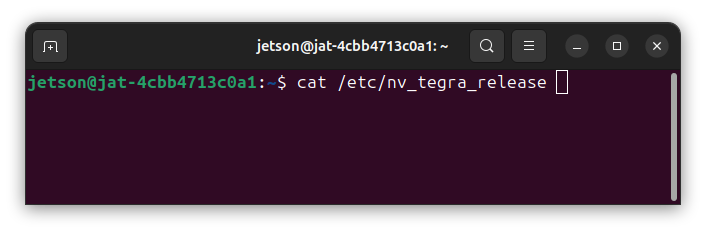
⚠️ Free GPU Memory First
Before starting, make sure Ollama is stopped to free GPU VRAM:
sudo systemctl stop ollama
nvidia-smi  # Verify no Ollama processes
What is a Vision Language Model (VLM)?
A Vision Language Model (VLM) combines computer vision with natural language processing. Unlike traditional LLMs that only process text, VLMs can:
- See: Process images and video frames as input
- Understand: Interpret visual content in context
- Respond: Generate natural language descriptions, answers, or actions
Why VLMs and Not CNN-Based Models for Physical AI?
Traditional CNN-based object detection models output bounding boxes or class labels. A CNN-based system knows “there’s a cup” but not “the cup is too close to the edge and might fall.”
VLMs think. They reason about context, spatial relationships, and consequences:
| CNN-Based Models | Vision Language Models |
|---|---|
| ”Detected: person, chair" | "A person is about to sit on an unstable chair” |
| One model = one task | One model = unlimited tasks |
| Retrain for new scenarios | Just change the prompt |
| Fixed vocabulary (pre-defined classes) | Open vocabulary (knows “everything”) |
With VLMs, a single model can:
- Detect objects and explain their relationships
- Identify hazards and suggest actions
- Answer questions you didn’t anticipate at training time
And now, this runs at the edge. Jetson makes real-time VLM inference possible on-device with no cloud latency, no data leaving your device.
Run VLM with vLLM (Cosmos-Reason2)
vLLM is a high-performance inference engine optimized for production deployments. Let’s run Cosmos-Reason2, NVIDIA’s Physical AI VLM designed for spatial reasoning.
Why Cosmos-Reason2?
Cosmos-Reason2 excels at understanding the physical world:
- Spatial relationships between objects
- Physical action reasoning
- Real-world scene understanding
- Video understanding with multi-frame support
Start vLLM Server with Cosmos-Reason2
export MODEL_PATH="${HOME}/.cache/huggingface/hub/cosmos-reason2-8b_v1208-fp8-static-kv8"

sudo docker run -it --rm --runtime=nvidia --network host \
  -v ${HOME}/models/cosmos-reason2-8b-fp8:/models/cosmos-reason2-8b:ro \
  -v ${HOME}/.cache/vllm:/root/.cache/vllm \
  ghcr.io/nvidia-ai-iot/vllm:0.14.0-r38.3-arm64-sbsa-cu130-24.04 \
  vllm serve /models/cosmos-reason2-8b \
    --served-model-name nvidia/cosmos-reason2-8b-fp8 \
    --max-model-len 8192 \
    --gpu-memory-utilization 0.7 \
    --reasoning-parser qwen3 \
    --media-io-kwargs '{"video": {"num_frames": -1}}' \
    --enable-prefix-caching \
    --port 8000
💡 Finding Models for Jetson
When you want to run a model on Jetson, head to jetson-ai-lab.com/models — it’s a curated catalog of models tested on Jetson. Each model page has either a “Run” button (a one-click command you can copy-paste) or a “Details” button that walks you through setup steps.
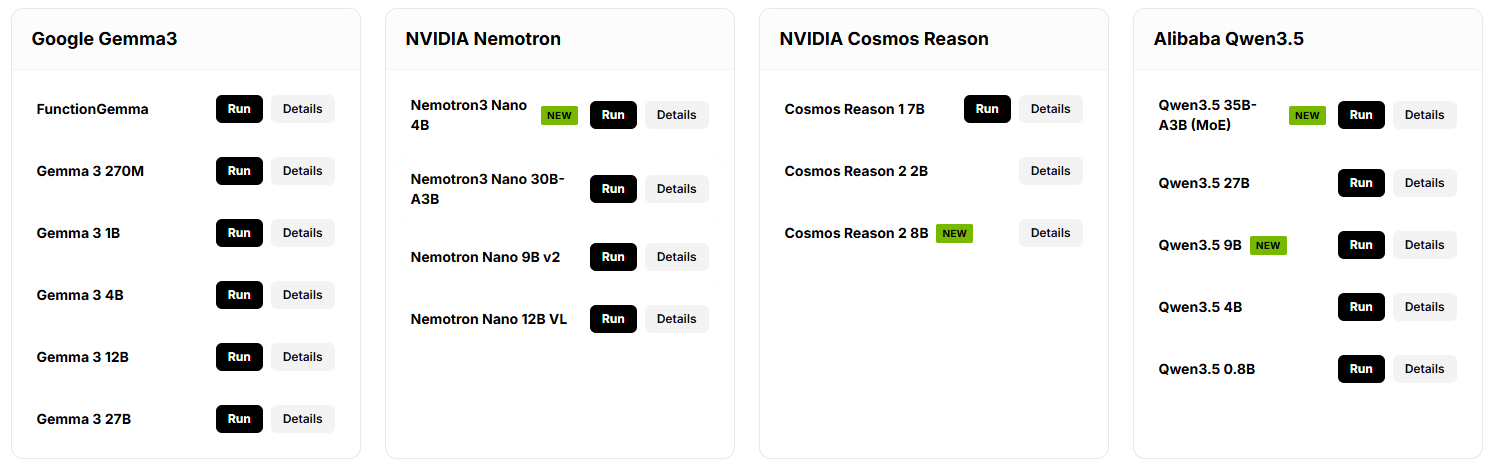
For Cosmos-Reason2 8B, the model page has a Details page because the model weights need to be downloaded from NGC using ngc-cli with your NGC API key (Steps 1 and 2 on the page).
📦 Pre-downloaded for This Workshop
The Cosmos-Reason2 model weights are already set up on your Jetson Thor at ~/.cache/huggingface/hub/cosmos-reason2-8b_v1208-fp8-static-kv8 — so you can skip Steps 1–2 and jump straight to the docker run command.
Wait for the server to start. You’ll see output like:
INFO:     Started server process
INFO:     Uvicorn running on http://0.0.0.0:8000
Test the API
In a new terminal (keep vLLM running), send a test request:
curl -X POST http://localhost:8000/v1/chat/completions \
  -H "Content-Type: application/json" \
  -d '{
    "model": "nvidia/cosmos-reason2-8b-fp8",
    "messages": [{
      "role": "user",
      "content": "What capabilities do you have for understanding images and video?"
    }],
    "max_tokens": 256
  }'
💡 OpenAI-Compatible API
vLLM provides an OpenAI-compatible API, making it easy to integrate with existing tools and applications.
From Text to Continuous Video
We just verified the server is running. But Physical AI doesn’t work with text alone — it requires continuous visual understanding.
Think about it:
- Smart cameras need to monitor scenes that change every second
- Industrial systems must track objects as they move
- Edge AI applications process 30+ frames per second
How do we feed continuous video to a VLM and get real-time responses?
Live VLM WebUI — See the World in Real-Time
Live VLM WebUI solves this. It uses WebRTC to stream your camera feed directly to the VLM, analyzing frames continuously and responding in real-time.

Download and Start Live VLM WebUI
Keep vLLM running in your first terminal. In a new terminal, clone the repository and start the container:
git clone https://github.com/NVIDIA-AI-IOT/live-vlm-webui.git ~/live-vlm-webui
cd ~/live-vlm-webui
./scripts/start_container.sh
Access the Interface
On your client PC browser, navigate to:
https://<JETSON_IP>:8090Replace <JETSON_IP> with your Jetson’s IP address.
🔒 Accept the Self-signed SSL Certificate
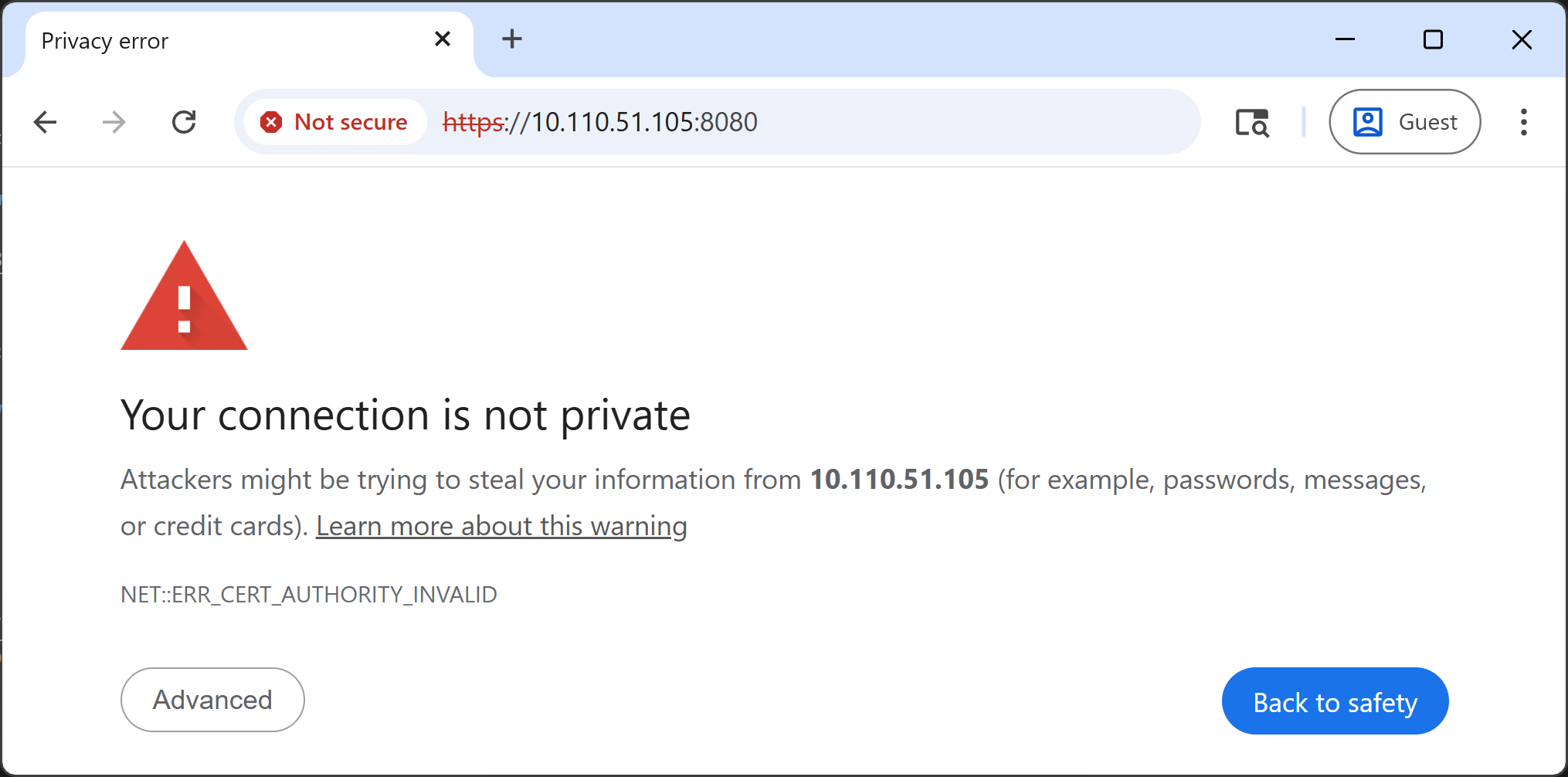
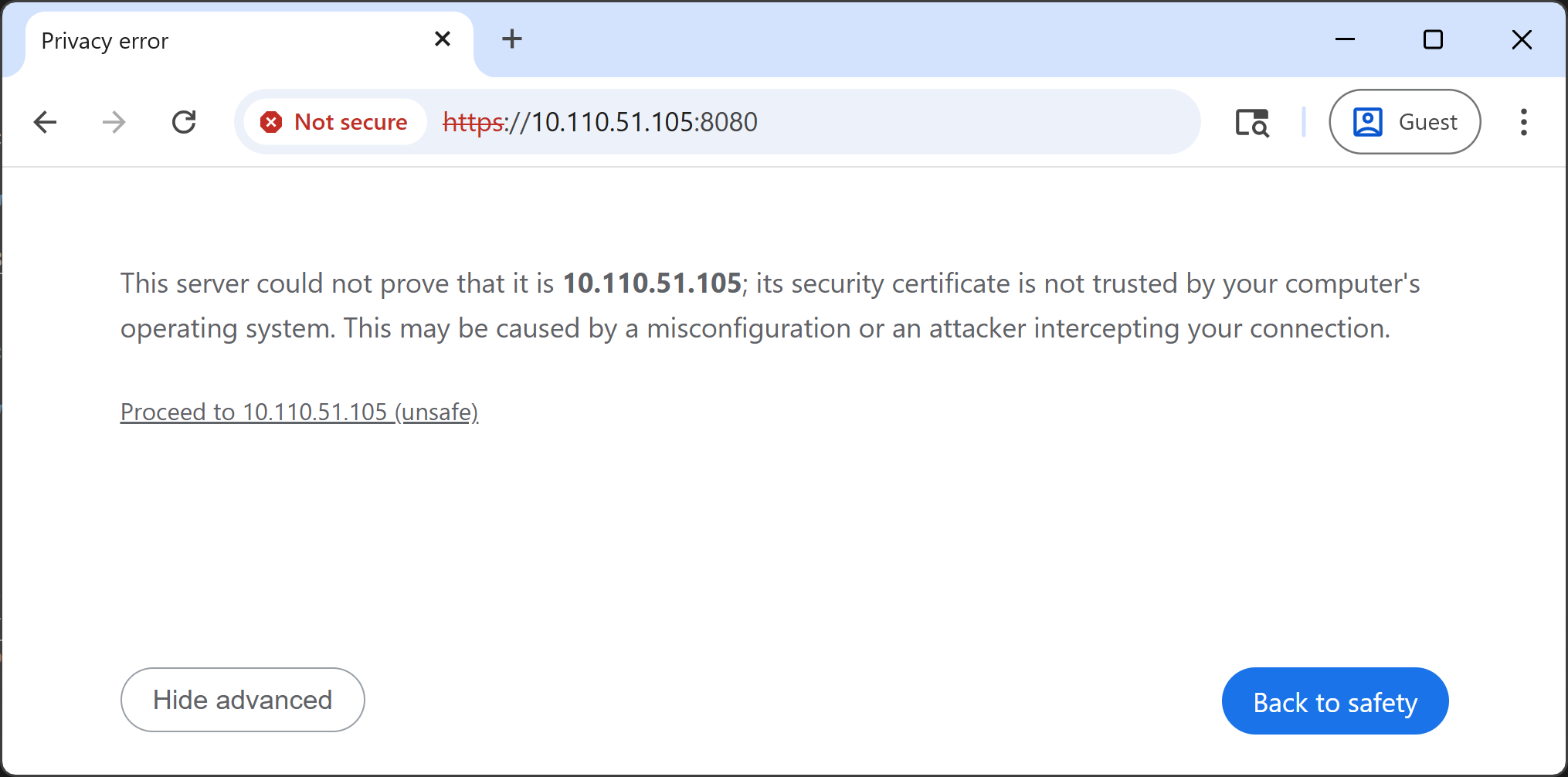
You’ll see a security warning in your browser. This is expected — the container uses a self-signed certificate for HTTPS (required for webcam access).
-
Click “Advanced”
-
Click “Proceed to <IP_ADDRESS> (unsafe)”
-
Allow camera access when prompted
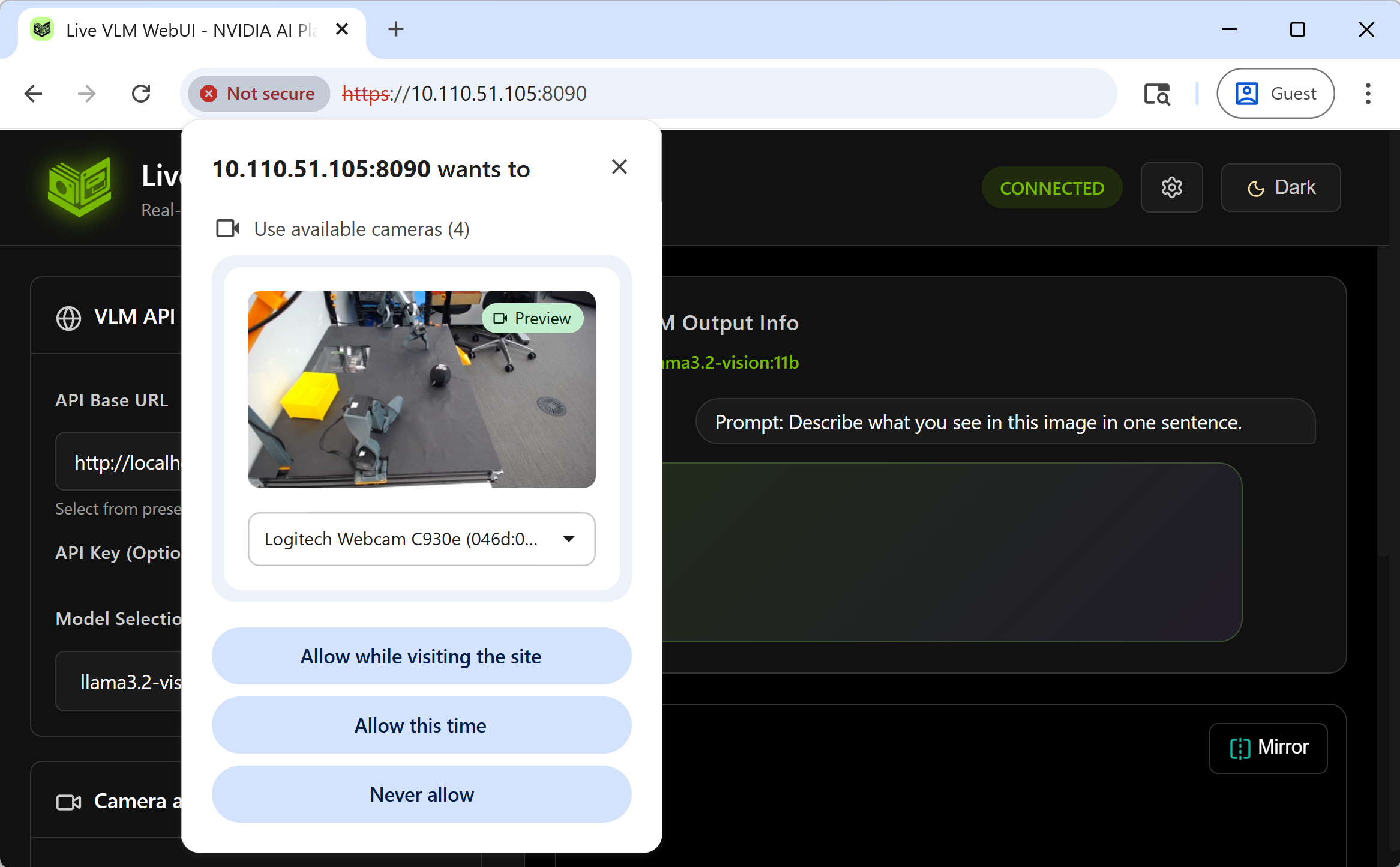
Configure Live VLM WebUI
- Allow camera access when your browser prompts
- Set API Endpoint:
http://localhost:8000/v1 - Select Model:
nvidia/cosmos-reason2-8b-fp8 - Click “Start Camera and Start VLM Analysis”
Real-Time Vision AI in Action!
Your webcam feed is now being analyzed by Cosmos-Reason2 in real-time. Try different prompts and see how the VLM responds:
| Prompt Type | Example |
|---|---|
| Scene Description | ”Describe what you see in one sentence” |
| Object Detection | ”List all objects, separated by commas” |
| Activity Recognition | ”What is the person doing?” |
| Spatial Reasoning | ”Where is the red object relative to the blue one?” |
| Safety Monitoring | ”Any hazards? Answer ALERT or SAFE” |
Ideas to try:
- Point the camera at your GTC badge and ask it to read the text
- Hold up different objects and ask about their spatial relationships
- Ask safety-related questions about the scene
🚑 Troubleshooting
GPU memory not released after stopping vLLM
Even after stopping the vLLM container, GPU memory may remain allocated. Run:
sudo sysctl -w vm.drop_caches=3What’s Missing?
Live VLM WebUI is great for single-turn, one-frame analysis — you send a prompt, the VLM looks at the current frame, and responds. But notice the limitations:
- No temporal understanding — it processes one frame at a time and cannot ingest multiple frames from a video to understand motion, sequences, or changes over time
- No conversational context — each query is independent; the VLM doesn’t remember past interactions or previously seen frames
What if you could have a VLM that watches a continuous video stream, builds up context over time, and you could even talk to it with your voice? That’s exactly what we’ll build in the next chapter.
📖 Want to Learn More?
For a deeper dive into Live VLM WebUI — including advanced settings, custom prompts, RTSP camera support, and building your own app — check out the full tutorial at jetson-ai-lab.com/tutorials/live-vlm-webui.