Reachy Mini Jetson Assistant
Use Jetson agent skills to build a memory-optimized multimodal application on Jetson Orin Nano 8GB.
 Aditya Sahu
 The Reachy Mini Jetson Assistant is a fully local voice and vision robot assistant for Reachy Mini Lite powered by NVIDIA Jetson. It listens through the robot microphone, captures camera frames, reasons with a vision-language model, speaks with text-to-speech, tracks the person in front of it, and drives expressive head, body, and antenna movements.
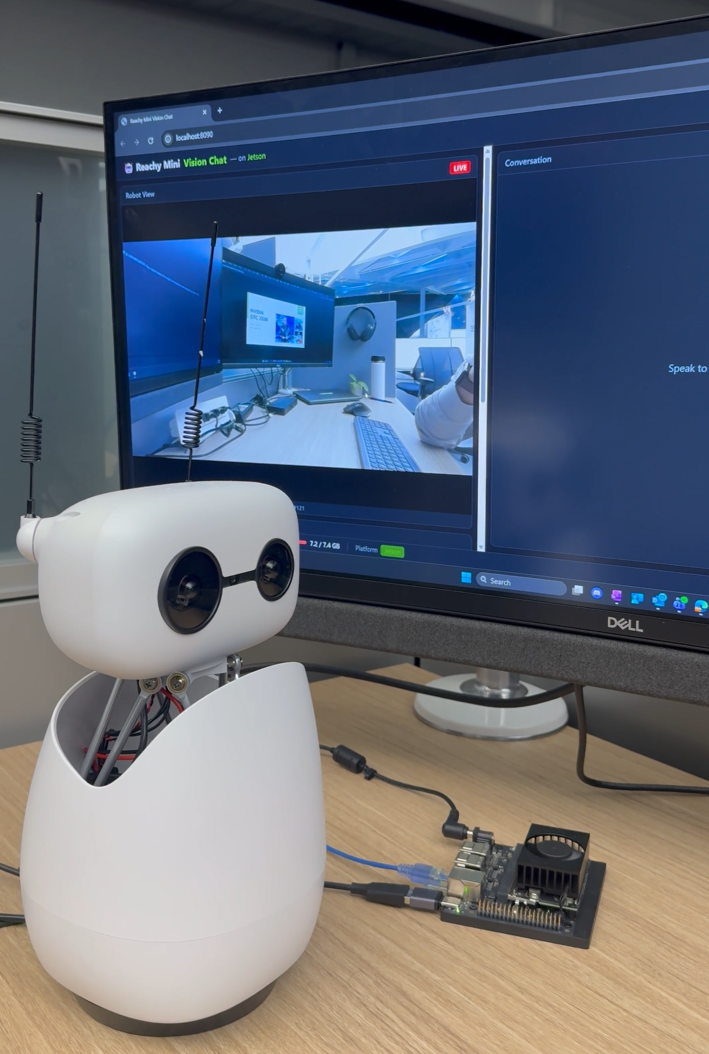
The interesting part is not only that the entire AI pipeline runs locally. It is that the complete stack can run on a Jetson Orin Nano 8GB with proper memory optimization:
[Mic] -> [Silero VAD] -> [faster-whisper STT] --+
[USB Camera] -> [Frame Ring Buffer] ------------+-> [VLM stream] -> [TTS stream] -> [Speaker + Robot]
                                                +-> [Web UI via WebSocket]
Jetson Device Skills are applicable across Jetson devices. In this tutorial, we walk through how those skills were used to deploy a conversational AI application on Jetson Orin Nano 8GB and validate the memory decisions that make the pipeline practical on the smallest Orin Nano target.
What You Will Build
You will run a local Reachy Mini assistant with:
- Vision-language reasoning with Cosmos-Reason2-2B GGUF Q4_K_M served by
llama.cpp - Speech-to-text with
faster-whisperand CUDA-enabled CTranslate2 - Text-to-speech with Kokoro ONNX and CUDA ONNX Runtime
- Voice activity detection with Silero VAD
- Face detection and tracking with OpenCV YuNet
- Reachy Mini motion control with face tracking and TTS-synchronized gestures
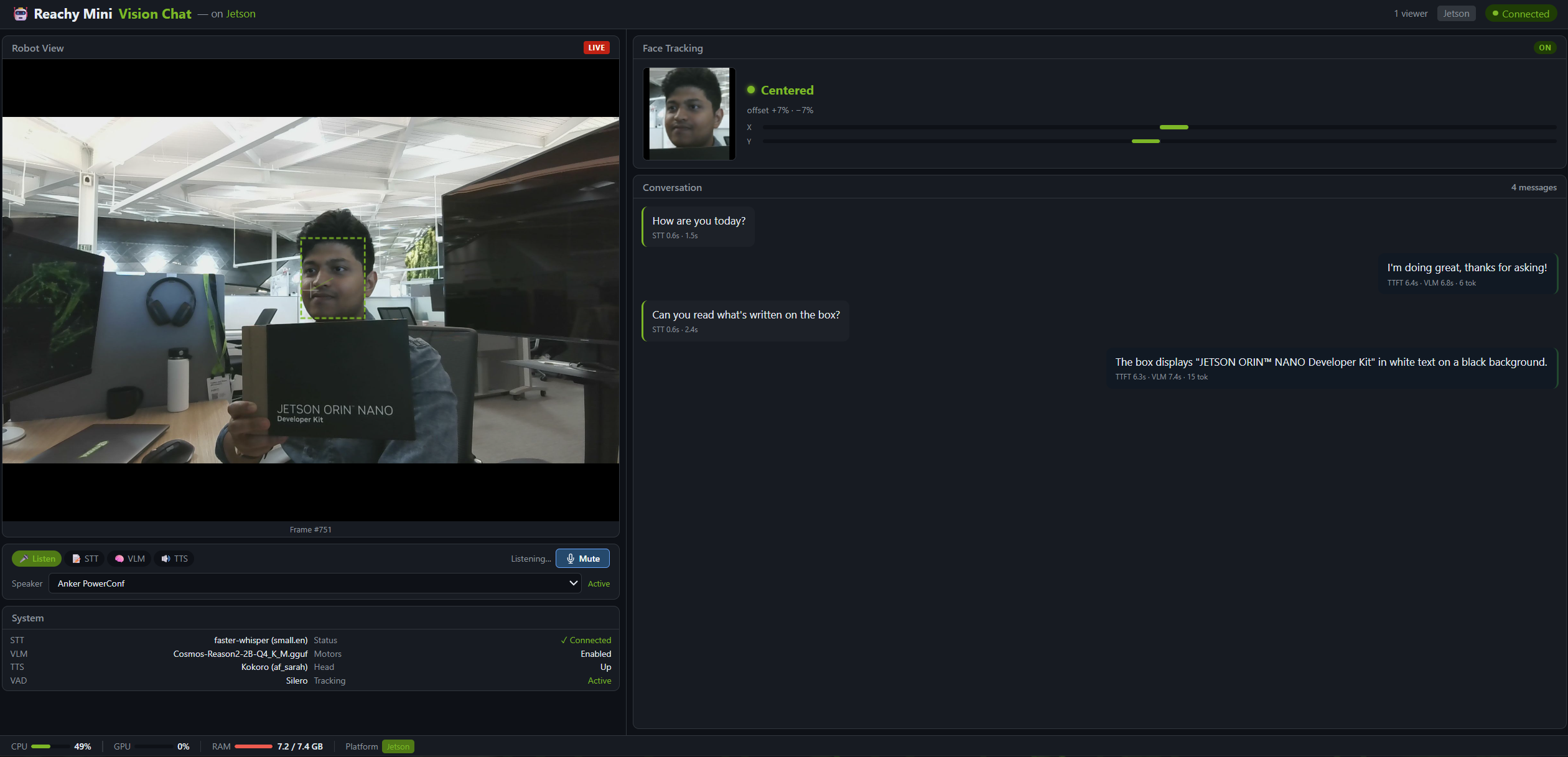
- Browser UI with live camera, conversation state, and telemetry
Why Memory Optimization Matters
The NVIDIA Technical Blog post Maximizing Memory Efficiency to Run Bigger Models on NVIDIA Jetson presents the Reachy Mini assistant as a stack-wide transition from an Orin NX 16GB-class configuration to a complete Orin Nano 8GB deployment.
The Orin Nano has a real deployment budget of about 7.6GB usable unified memory, and this application runs several memory-hungry components at the same time. The point is not to optimize one layer. The system fits because every layer is chosen for the budget.
| Optimization layer | Before: larger-memory configuration | After: Orin Nano 8GB configuration | Why it matters |
|---|---|---|---|
| BSP and OS services | Ubuntu Desktop with a full GNOME session | Headless multi-user.target | Saves memory that would otherwise be consumed by desktop services |
| Inference framework | Heavier serving framework | llama.cpp | Keeps the VLM serving overhead low |
| VLM precision | Cosmos Reason2 2B FP16 | Cosmos Reason2 2B GGUF Q4_K_M | Reduces runtime memory |
How Jetson Device Skills Helped
Jetson Device Skills provided an agent-guided workflow for bringing up the application on a live Jetson. We used them to inspect the Orin Nano 8GB system, identify memory pressure, choose a low-memory VLM runtime, and verify the result after tuning. The skills produced the evidence and recommendations; the Reachy application used those findings to choose the runtime, model format, headless deployment, and memory-conscious application settings.
If you are customizing the Jetson image before flashing, also look at Jetson BSP Skills. Those skills focus on BSP and image-build workflows, while the Jetson Device Skills used here operate after the device has booted and help inspect, tune, and validate a live Jetson deployment.
The table below keeps the skills story simple: what the skills showed, what we chose, and what changed.
| Area | What Jetson skills showed | Decision | Evidence / impact |
|---|---|---|---|
| Device budget | jetson-diagnostic confirmed the Orin Nano 8GB target; jetson-memory-audit showed active memory pressure | Treat the live Orin Nano memory budget as the design constraint | Baseline memory was about 223 MB available with about 2 GB swap in use |
| OS footprint | jetson-diagnostic recommended headless mode to reduce desktop service overhead | Keep the robot deployment headless | Headless mode saved about 0.7 GB |
| VLM runtime | jetson-inference-mem-tune recommended llama.cpp for a tight-memory VLM server workload | Serve Cosmos Reason2 with llama.cpp | Lower serving overhead leaves memory for the other models |
| VLM model format | jetson-inference-mem-tune pointed to the GGUF 4-bit path for Orin Nano | Use Cosmos Reason2 2B GGUF Q4_K_M | The VLM footprint drops from about 6.6GB to about 2.2GB |
Prepare Reachy Mini USB Access
Connect Reachy Mini Lite to the Jetson over USB, then add udev rules so the SDK can access the serial ports without root:
echo 'SUBSYSTEM=="tty", ATTRS{idVendor}=="2e8a", ATTRS{idProduct}=="000a", MODE="0666", SYMLINK+="reachy_mini"' \
  | sudo tee /etc/udev/rules.d/99-reachy-mini.rules
sudo udevadm control --reload-rules && sudo udevadm trigger
Add your user to the dialout group and reboot:
sudo usermod -aG dialout $USER
sudo reboot
After reboot, verify the device is visible:
ls -la /dev/ttyACM*Add NVMe Swap
Expand: set up NVMe swap for the 8GB memory budget
Running STT, VLM, TTS, camera capture, face tracking, robot control, and the web UI concurrently can exceed the comfortable 8GB memory headroom. Use NVMe swap to avoid OOM kills during model loading or peak camera/audio activity.
Adjust /mnt/nvme to match your NVMe mount point:
sudo fallocate -l 8G /mnt/nvme/swapfile
sudo chmod 600 /mnt/nvme/swapfile
sudo mkswap /mnt/nvme/swapfile
sudo swapon /mnt/nvme/swapfile
Persist the swap file across reboots:
echo '/mnt/nvme/swapfile none swap sw 0 0' | sudo tee -a /etc/fstabInstall the Assistant
Install the system dependencies used by audio, Python virtual environments, and CUDA-enabled inference libraries:
sudo apt-get update
sudo apt-get install -y \
  python3.10-venv \
  portaudio19-dev \
  libasound2-dev \
  pulseaudio-utils \
  libcudnn9-dev-cuda-12
Clone the repository:
git clone https://github.com/NVIDIA-AI-IOT/reachy-mini-jetson-assistant
cd reachy-mini-jetson-assistant
Create and activate a Python 3.10 virtual environment:
python3.10 -m venv venv
source venv/bin/activate
pip install --upgrade pip wheel
pip install -r requirements.txt
Install the Jetson GPU build of ONNX Runtime:
pip install onnxruntime-gpu --extra-index-url https://pypi.jetson-ai-lab.io/jp6/cu126Install the Reachy Mini SDK:
pip install reachy-miniPin NumPy for Jetson ONNX Runtime compatibility:
pip install "numpy==1.26.4"Build CTranslate2 with CUDA
The pip ctranslate2 package is CPU-only on Jetson. Build CTranslate2 from source for GPU-accelerated faster-whisper STT:
pip install pybind11

cd ~
git clone --depth 1 https://github.com/OpenNMT/CTranslate2.git
cd CTranslate2
git submodule update --init --recursive

mkdir build && cd build
export PATH=/usr/local/cuda/bin:$PATH
export CUDA_HOME=/usr/local/cuda
cmake .. -DWITH_CUDA=ON -DWITH_CUDNN=ON -DCMAKE_BUILD_TYPE=Release \
         -DCUDA_ARCH_LIST="8.7" -DOPENMP_RUNTIME=NONE -DWITH_MKL=OFF

make -j$(nproc)
cmake --install . --prefix ~/.local

export LD_LIBRARY_PATH=~/.local/lib:$LD_LIBRARY_PATH
cd ../python
pip install .
Persist the library path in your virtual environment activation script:
echo 'export LD_LIBRARY_PATH=$HOME/.local/lib:$LD_LIBRARY_PATH' >> ~/reachy-mini-jetson-assistant/venv/bin/activateVerify the Runtime
Activate the environment and check the key GPU providers:
source venv/bin/activate
python3 -c "
import ctranslate2; print('CTranslate2 CUDA devices:', ctranslate2.get_cuda_device_count())
import onnxruntime; print('ONNX providers:', onnxruntime.get_available_providers())
from reachy_mini import ReachyMini; print('Reachy Mini SDK: OK')
import faster_whisper; print('faster-whisper: OK')
import kokoro_onnx; print('kokoro-onnx: OK')
"
Expected output includes:
CTranslate2 CUDA devices: 1
ONNX providers: ['CUDAExecutionProvider', 'CPUExecutionProvider']
Reachy Mini SDK: OK
faster-whisper: OK
kokoro-onnx: OK
Start the VLM Server
In the first terminal, start Cosmos-Reason2-2B with llama.cpp:
NP=1 ./run_llama_cpp.sh Kbenkhaled/Cosmos-Reason2-2B-GGUF:Q4_K_MWait until the server reports that it is listening on http://0.0.0.0:8080.
Run Web Vision Chat
In a second terminal, start the full assistant:
source venv/bin/activate
python3 run_web_vision_chat.py
Open the web UI from a browser on the same network:
http://<jetson-ip>:8090You should see the live camera feed, conversation log, push-to-talk control, active settings, and system telemetry.
Test Robot Movement
Expand: test Reachy movement and motion behavior
To test Reachy movement independently:
source venv/bin/activate
python3 scripts/test_reachy_movement.py
In Web Vision Chat mode, the motion stack uses a single 100 Hz controller so face tracking and speaking gestures do not fight over motor targets. Face detection runs at about 15 Hz with YuNet through OpenCV, while the speaking movement layer selects a short official Pollen Robotics movement when playable TTS audio begins.
The motion system also includes capture settling: it briefly freezes motion before selecting the frame sent to the VLM, which improves image stability for visual reasoning.
Troubleshooting
Expand troubleshooting tips
If CUDAExecutionProvider is missing, remove the CPU package and reinstall the Jetson GPU build:
pip uninstall onnxruntime
pip install onnxruntime-gpu --extra-index-url https://pypi.jetson-ai-lab.io/jp6/cu126
If CTranslate2 cannot find CUDA, make sure the library path is active:
export LD_LIBRARY_PATH=$HOME/.local/lib:$LD_LIBRARY_PATHIf the VLM server is not responding:
docker ps
docker logs assistant-llm
If a previous web instance is still using port 8090:
lsof -ti :8090 | xargs kill -9If the camera is held by another process:
ls /dev/video*
fuser -k /dev/video0
Next Steps
After the assistant is running, experiment with:
- Different VLM models that fit your Jetson memory budget
- Additional Reachy Mini gestures and movement profiles under
config/settings.yaml